
Languages and Translations
How the SDK translates every piece of visible text and how to override specific translations.
This page explains how the SDK translates every piece of visible text and how you can override specific translations.
What Is Language Support?
Section titled “What Is Language Support?”Every button, label, message, and placeholder the visitor sees is pulled from a translation dictionary. The SDK ships with built-in dictionaries for 17 languages, so the search experience automatically speaks the visitor’s language.
When a visitor sees “Apply Filters”, “No results found”, or “Price Ascending”, that text is not hard-coded. It comes from a dictionary entry that can be changed.
Built-In Languages
Section titled “Built-In Languages”The SDK includes ready-made dictionaries for these languages:
| Code | Language |
|---|---|
| EN | English |
| TR | Turkish |
| FR | French |
| ES | Spanish |
| PT | Portuguese |
| DE | German |
| IT | Italian |
| NL | Dutch |
| PL | Polish |
| RU | Russian |
| AR | Arabic |
| SR | Serbian |
| ME | Montenegrin |
| HR | Croatian |
| MK | Macedonian |
| BA | Bosnian |
| RO | Romanian |
You choose the active language by setting a language code. The SDK looks up that code, loads the matching dictionary, and uses it for all visible text.
How the Language Is Chosen
Section titled “How the Language Is Chosen”The SDK picks the language in this order:
- If you explicitly set a
languageCodein the dictionary config, it uses that. - If you don’t set a language code, it defaults to English (EN).
What Text Gets Translated
Section titled “What Text Gets Translated”The dictionary is a flat list of keys that map to visible strings. Every translatable string in the search experience has a key. Here is the full set:
| Key | Default (EN) | Group | Where it appears |
|---|---|---|---|
| filter | Filters | Filters | Filter panel title |
| dropdown_facet_title | Filter | Filters | Dropdown-style filter header |
| clear | Clear | Filters | Clear a single filter |
| clear_filters | Clear Filters | Filters | Clear all active filters |
| apply | Apply Filters | Filters | Apply button inside filter panel |
| apply_inputboxes | Apply | Filters | Apply button inside min/max input boxes |
| see_more | See More | Filters | Expand a truncated filter list |
| see_less | See Less | Filters | Collapse an expanded filter list |
| category | Category | Filters | Category filter label |
| brand | Brand | Filters | Brand filter label |
| colors | Colors | Filters | Color filter label |
| sizes | Sizes | Filters | Size filter label |
| gender | Gender | Filters | Gender filter label |
| price | Price Range | Filters | Price filter label |
| stars | Stars | Filters | Star rating filter label |
| star_text | Star | Filters | Singular star label |
| other | Others | Filters | Catch-all label for uncategorized options |
| min_placeholder | Min | Filters | Minimum input placeholder |
| max_placeholder | Max | Filters | Maximum input placeholder |
| below_value | {} below | Filters | Range label (e.g., “$50 below”) |
| above_value | {} above | Filters | Range label (e.g., “$200 above”) |
| sort | Order By | Sorting | Sorting section header |
| sort_label | Sort by: | Sorting | Sorting dropdown label |
| apply_sort | Apply | Sorting | Apply button inside sorting panel |
| SMART_SORTING | Smart Order | Sorting | Sort option |
| BEST_MATCH | Best Match | Sorting | Sort option |
| PRICE_ASC | Price Ascending | Sorting | Sort option |
| PRICE_DESC | Price Descending | Sorting | Sort option |
| BEST_SELLERS | Top Selling | Sorting | Sort option |
| NEWEST | Newest First | Sorting | Sort option |
| ALPHABETICAL_ASC | Name Ascending | Sorting | Sort option |
| ALPHABETICAL_DESC | Name Descending | Sorting | Sort option |
| stat | For {}, we have found {} results | Results | Result count message ({} is replaced at runtime) |
| no_result_up | No result has been found for {} | Results | No-results headline |
| no_result_down | However, Don’t give up! You can still try searching with different keywords | Results | No-results encouragement |
| view_product | View Product | Products | Product card link |
| add_to_cart | Add to Cart | Products | Product card button |
| add_to_wishlist | Add to Wishlist | Products | Product card button |
| quick_view | Quick View | Products | Product card button |
| out_of_stock | OUT OF STOCK | Products | Product card badge |
| first | First | Navigation | Pagination: first page |
| last | Last | Navigation | Pagination: last page |
| prev | Prev | Navigation | Pagination: previous page |
| next | Next | Navigation | Pagination: next page |
| load_more | More Results | Navigation | Load more button |
| see_all | See All | Navigation | See all results link |
| go_back | Go Back | Navigation | Back navigation link |
| search | Search | Search | Searchbox placeholder / label |
| find | Find | Search | Searchbox alternative label |
| try_again | Try Again | Search | Retry action label |
| brands | Top Brands | Searchbox | Brand suggestions section |
| categories | Top Categories | Searchbox | Category suggestions section |
| keywords | Top Keywords | Searchbox | Keyword suggestions section |
| lastSearches | Last Searches | Searchbox | Recent searches section |
| brandLogoList | (varies by language) | Searchbox | Brand logo section |
| Products | Products | Searchbox | Products section header |
| clear_input_text | Clear | Searchbox | Clear search input button |
| mobile_cancel_text | x | Mobile | Close button label (overrides on mobile) |
| mobile_brands | (from brands) | Mobile | Brand section label (overrides on mobile) |
| mobile_keywords | (from keywords) | Mobile | Keyword section label (overrides on mobile) |
| mobile_categories | (from categories) | Mobile | Category section label (overrides on mobile) |
| mobile_lastsearches | (from lastSearches) | Mobile | Recent searches section label (overrides on mobile) |
| mobile_clear | Clear | Mobile | Clear button label (overrides on mobile) |
| after_products | (from Products) | After-Typing | Products section label (overrides after visitor types) |
| after_categories | (from categories) | After-Typing | Category section label (overrides after visitor types) |
| after_brands | (from brands) | After-Typing | Brand section label (overrides after visitor types) |
| after_keywords | (from keywords) | After-Typing | Keyword section label (overrides after visitor types) |
| after_lastsearches | (from lastSearches) | After-Typing | Recent searches section label (overrides after visitor types) |
| after_clear_input_text | (from clear_input_text) | After-Typing | Clear button label (overrides after visitor types) |
Overriding Translations
Section titled “Overriding Translations”You do not have to accept the built-in text. You can override specific keys for any language.
For example, if the English “Apply Filters” button should say “Show Results” on a particular website, you override the apply key. Everything else keeps its default.
Before override: [ Apply Filters ]After override: [ Show Results ]You only need to provide the keys you want to change. Unoverridden keys keep their built-in translations.
When Overrides Are Useful
Section titled “When Overrides Are Useful”- The customer uses specific wording. Their website says “Refine” instead of “Filter”, or “Shop” instead of “View Product”.
- The built-in translation is not ideal. A particular market or audience prefers different phrasing.
- You want to blank out a label. Setting a key to an empty string
''hides that text entirely.
Dynamic Placeholders
Section titled “Dynamic Placeholders”Some keys contain {} placeholders that get replaced at runtime:
stat: “For {}, we have found {} results” — the first{}becomes the search keyword, the second becomes the result count.no_result_up: “No result has been found for {}” —{}becomes the search keyword.below_value/above_value: ”{} below” / ”{} above” —{}becomes the value.
When overriding these keys, keep the {} placeholders in the correct positions. The SDK fills them in order.
Adding a New Language
Section titled “Adding a New Language”If the website uses a language that is not in the built-in list, you can add it. You provide the full set of translations under a new language code, and the SDK uses them as if they were built in.
For example, to add Japanese:
dictionary: { languageCode: 'JA', JA: { filter: 'フィルター', apply: '適用', search: '検索', sort: '並べ替え', // ... all other keys }}If any key is missing from your custom language, the SDK falls back to the key name itself (e.g., if you forget go_back, the visitor sees “go_back” as literal text). It is best to provide all keys.
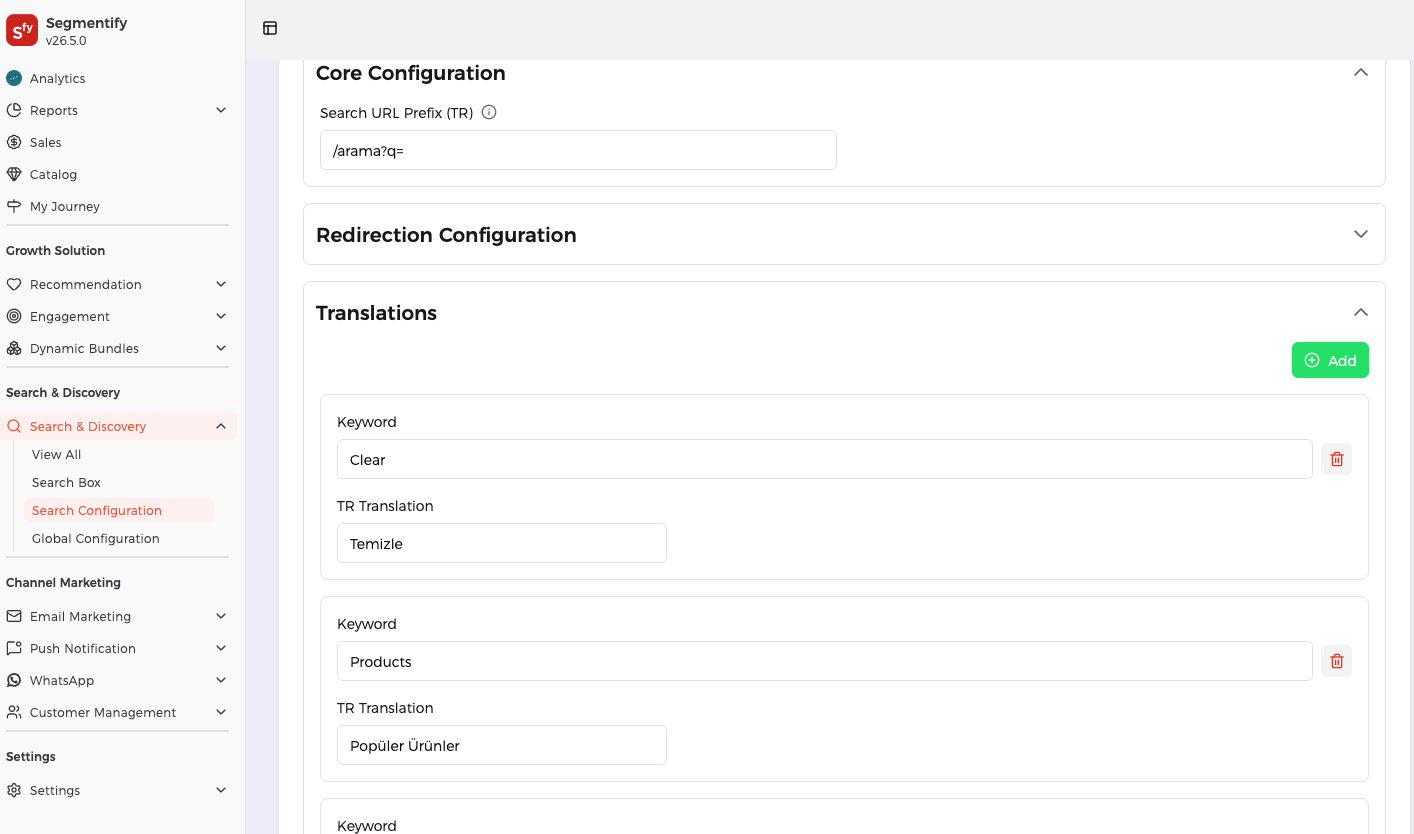
Adding new language or values from Segmentify Dashboard
Section titled “Adding new language or values from Segmentify Dashboard”You can add new languages or values from the Segmentify Dashboard.
- Go to the Segmentify Dashboard and go to the search configuration page.
- Click on “Add Value”.
- Select the key you want to add.
- Add the value for the key.
- Click on “Save”.
Real-world example:
Summary
Section titled “Summary”| Feature | What it means |
|---|---|
| 17 built-in languages | EN, TR, FR, ES, PT, DE, IT, NL, PL, RU, AR, SR, ME, HR, MK, BA, RO |
| Automatic translation | Every button, label, placeholder, and message is pulled from a dictionary. |
| Choose the language | Set a language code and the SDK switches to that dictionary. |
| Override specific keys | Change individual translation keys without affecting the rest of the dictionary. |
| Add new languages | Provide a full set of translations under a new language code. |
| Dynamic placeholders | Keys with {} are filled in at runtime with search keywords, counts, or values. |
| Mobile & after-typing | Separate override keys for mobile labels and post-typing Searchbox sections. |
Configuration Reference (for developers)
Section titled “Configuration Reference (for developers)”Language and translations are configured through the dictionary key in the main config passed to SegmentifySearch.run.
Dictionary config
Section titled “Dictionary config”SegmentifySearch.run({ // ... other config (searchandising, searchInput, searchBox, layout, etc.) dictionary: { languageCode: 'EN', // Active language code EN: { // Overrides for English apply: 'Show Results', search: 'Find products', no_result_down: 'Try a different search term.', }, TR: { // Overrides for Turkish apply: 'Sonuçları Göster', }, },});Only the keys you include under a language code are overridden. All other keys keep their built-in values.
Language resolution order
Section titled “Language resolution order”1. dictionary.languageCode (explicitly set in config) ↓ if not set3. 'EN' (fallback)How the dictionary is merged
Section titled “How the dictionary is merged”When the SDK initializes, the dictionaryMerger utility builds the final dictionary in three steps:
Step 1:  Load built-in dictionary for the active language code           DICTIONARY['EN'] → { filter: 'Filters', apply: 'Apply Filters', ... }
Step 2:  Merge custom overrides on top           { ...DICTIONARY['EN'], ...config.dictionary['EN'] }           → { filter: 'Filters', apply: 'Show Results', ... }
Step 3:  Normalize all keys to lowercase           { filter: 'Filters', apply: 'Show Results', ... }
After merging, contextual adapters run:
- Mobile adapter: If the device is mobile,
mobile_*keys replace their base counterparts (e.g.,mobile_brandsreplacesbrands). - After-typing adapter: When the Searchbox enters the “after typing” state,
after_*keys replace their base counterparts (e.g.,after_productsreplacesProducts).
Full translation key reference
Section titled “Full translation key reference”Every overridable key, its default English value, and where it appears:
{  // Filters  dropdown_facet_title: 'Filter',  filter:               'Filters',  clear:                'Clear',  clear_filters:        'Clear Filters',  apply:                'Apply Filters',  apply_inputboxes:     'Apply',  see_more:             'See More',  see_less:             'See Less',  category:             'Category',  brand:                'Brand',  colors:               'Colors',  sizes:                'Sizes',  gender:               'Gender',  price:                'Price Range',  stars:                'Stars',  star_text:            'Star',  other:                'Others',  min_placeholder:      'Min',  max_placeholder:      'Max',  below_value:          '{} below',  above_value:          '{} above',
  // Sorting  sort:                 'Order By',  sort_label:           'Sort by:',  apply_sort:           'Apply',  SMART_SORTING:        'Smart Order',  BEST_MATCH:           'Best Match',  PRICE_ASC:            'Price Ascending',  PRICE_DESC:           'Price Descending',  BEST_SELLERS:         'Top Selling',  NEWEST:               'Newest First',  ALPHABETICAL_ASC:     'Name Ascending',  ALPHABETICAL_DESC:    'Name Descending',
  // Results  stat:                 'For {}, we have found {} results',  no_result_up:         'No result has been found for {}',  no_result_down:       'However, Don\'t give up! You can still try searching with different keywords',
  // Products  view_product:         'View Product',  add_to_cart:          'Add to Cart',  add_to_wishlist:      'Add to Wishlist',  quick_view:           'Quick View',  out_of_stock:         'OUT OF STOCK',
  // Navigation  first:                'First',  last:                 'Last',  prev:                 'Prev',  next:                 'Next',  load_more:            'More Results',  see_all:              'See All',  go_back:              'Go Back',
  // Search  search:               'Search',  find:                 'Find',  try_again:            'Try Again',
  // Searchbox sections  brands:               'Top Brands',  categories:           'Top Categories',  keywords:             'Top Keywords',  lastSearches:         'Last Searches',  brandLogoList:        '',  Products:             'Products',  clear_input_text:     'Clear',
  // Mobile overrides (Searchbox on mobile)  mobile_cancel_text:   'x',  mobile_brands:        'brands',  mobile_keywords:      'keywords',  mobile_categories:    'categories',  mobile_lastsearches:  'lastsearches',  mobile_clear:         'Clear',
  // After-typing overrides (Searchbox after the visitor types)  after_products:           'products',  after_categories:         'categories',  after_brands:             'brands',  after_keywords:           'keywords',  after_lastsearches:       'lastsearches',  after_clear_input_text:   'clear_input_text',}
Adding a complete custom language
Section titled “Adding a complete custom language”SegmentifySearch.run({ dictionary: { languageCode: 'JA', JA: { filter: 'フィルター', clear: 'クリア', clear_filters: '全てクリア', apply: '適用', sort: '並べ替え', sort_label: '並べ替え:', search: '検索', stat: '{}の検索結果: {}件', no_result_up: '{}の検索結果はありません', no_result_down: '別のキーワードで検索してみてください', // ... provide all keys for a complete experience }, },});Overriding mobile and after-typing labels
Section titled “Overriding mobile and after-typing labels”Mobile and after-typing keys are merged independently. To customize them:
SegmentifySearch.run({  dictionary: {    languageCode: 'EN',    EN: {      // Override base labels      brands: 'Popular Brands',      categories: 'Browse Categories',
      // Override mobile-specific labels      mobile_brands: 'Brands',      mobile_categories: 'Categories',
      // Override after-typing labels      after_brands: 'Matching Brands',      after_categories: 'Matching Categories',    },  },});